
Product · Guides
Stop refreshing the plugin directory: what WPInsight does for plugin developers
Abdur Rahman Emon
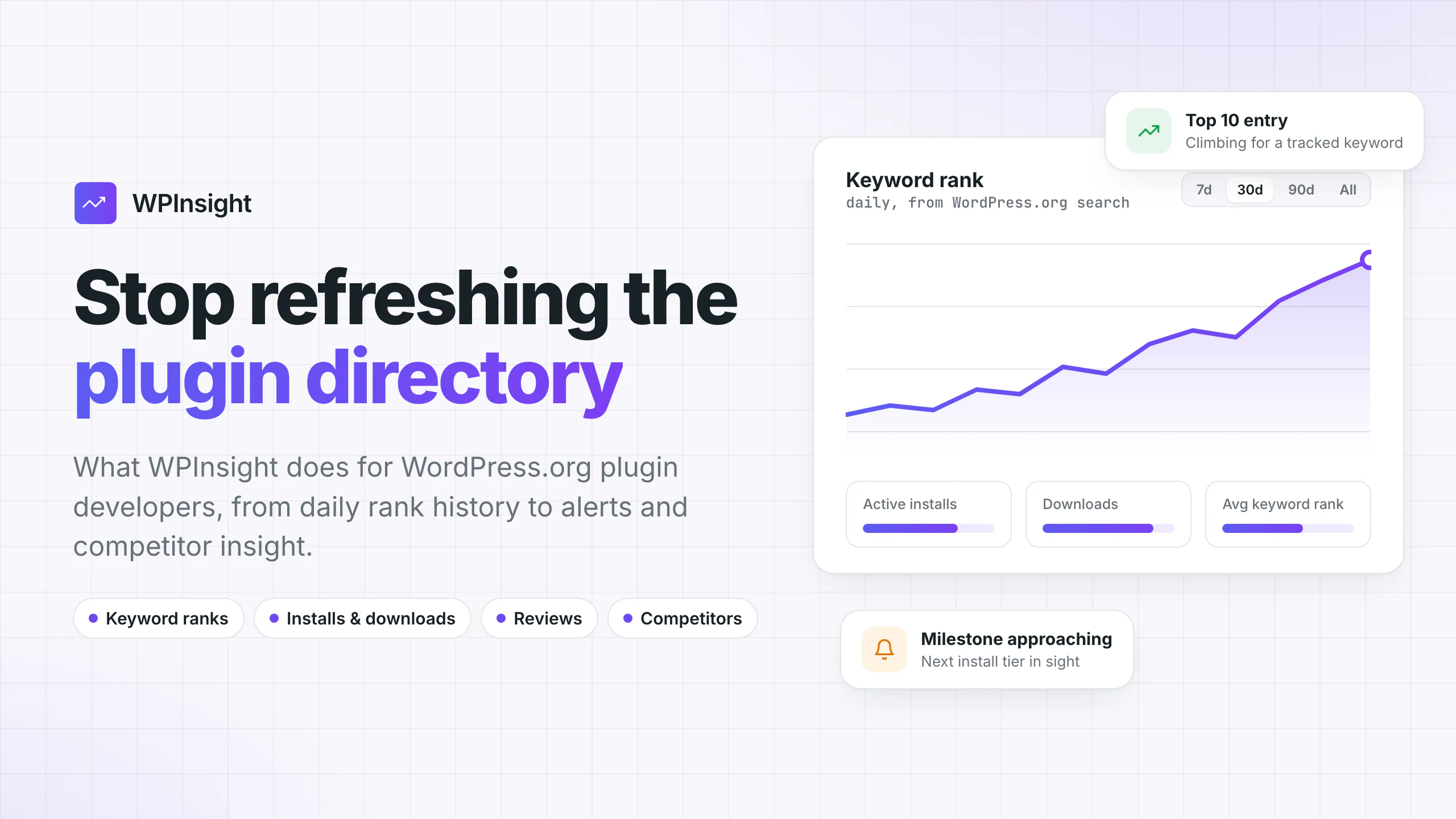
If you publish plugins on WordPress.org, you probably know the routine. Open your plugin page and check the active installs. Search your main keyword and scroll to see where you landed today. Look for new reviews. Do the same for the two or three rivals you keep an eye on. Then do it all again tomorrow.
It works, sort of. But it only ever tells you about today.
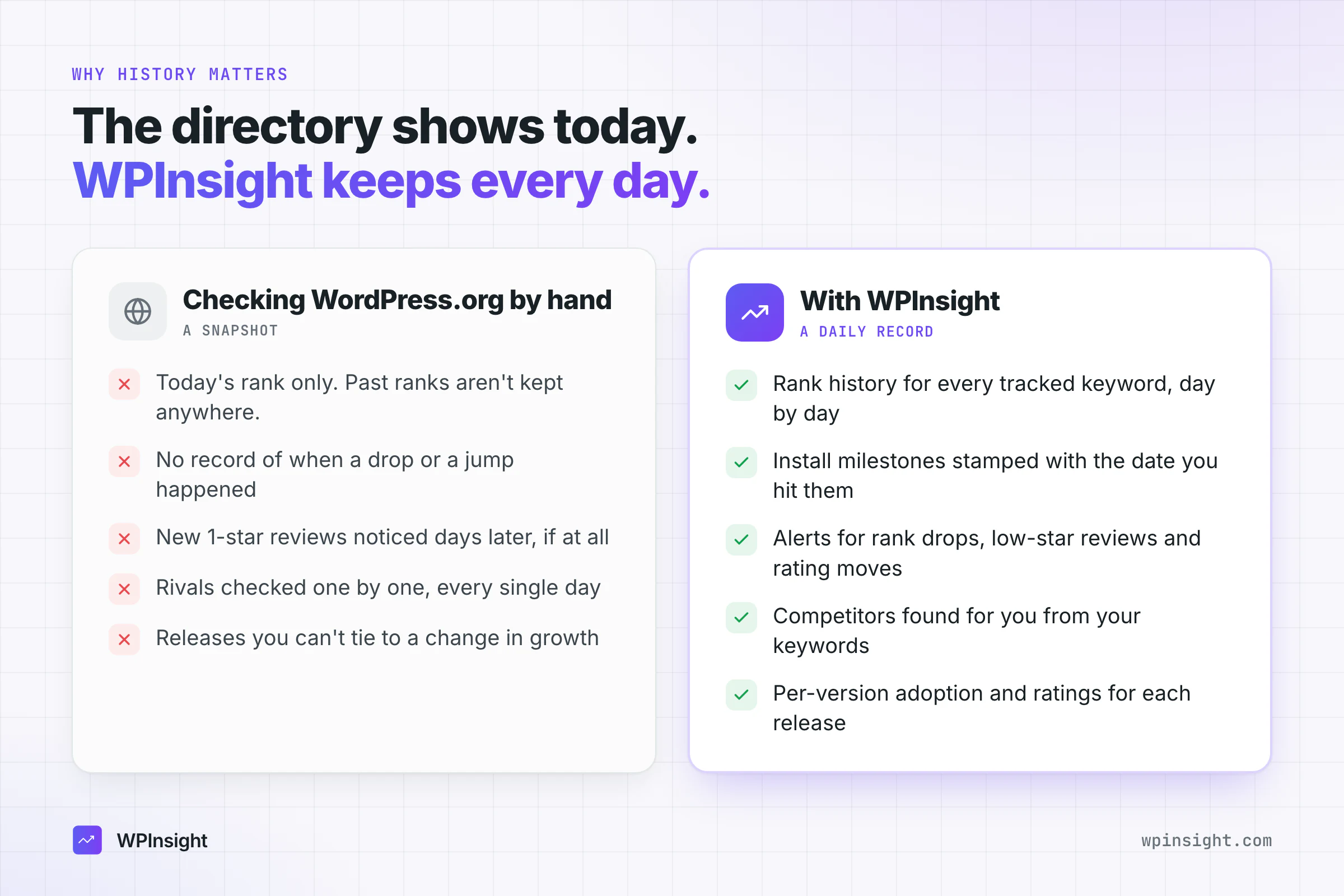
The problem with checking the directory by hand
The WordPress.org plugin directory is a snapshot. It shows your current install bucket, your current rating and wherever you happen to rank for a search right now. It doesn’t show you:
- Where you ranked last week. WordPress.org doesn’t serve past ranks. If you didn’t write a position down, it’s gone.
- When things changed. A rank drop, a burst of 1-star reviews or a jump to the next install tier rarely announces itself. You notice days later, if at all.
- Why things changed. Was it your release? A competitor’s? A handful of reviews? Without history, you’re guessing.
- What your rivals are doing. Tracking competitors by hand means repeating the whole routine for every plugin around you, every day.
WPInsight exists to fill that gap. It does the daily checking for you, keeps every result as history and turns that history into charts, alerts and competitor insight.
What WPInsight records
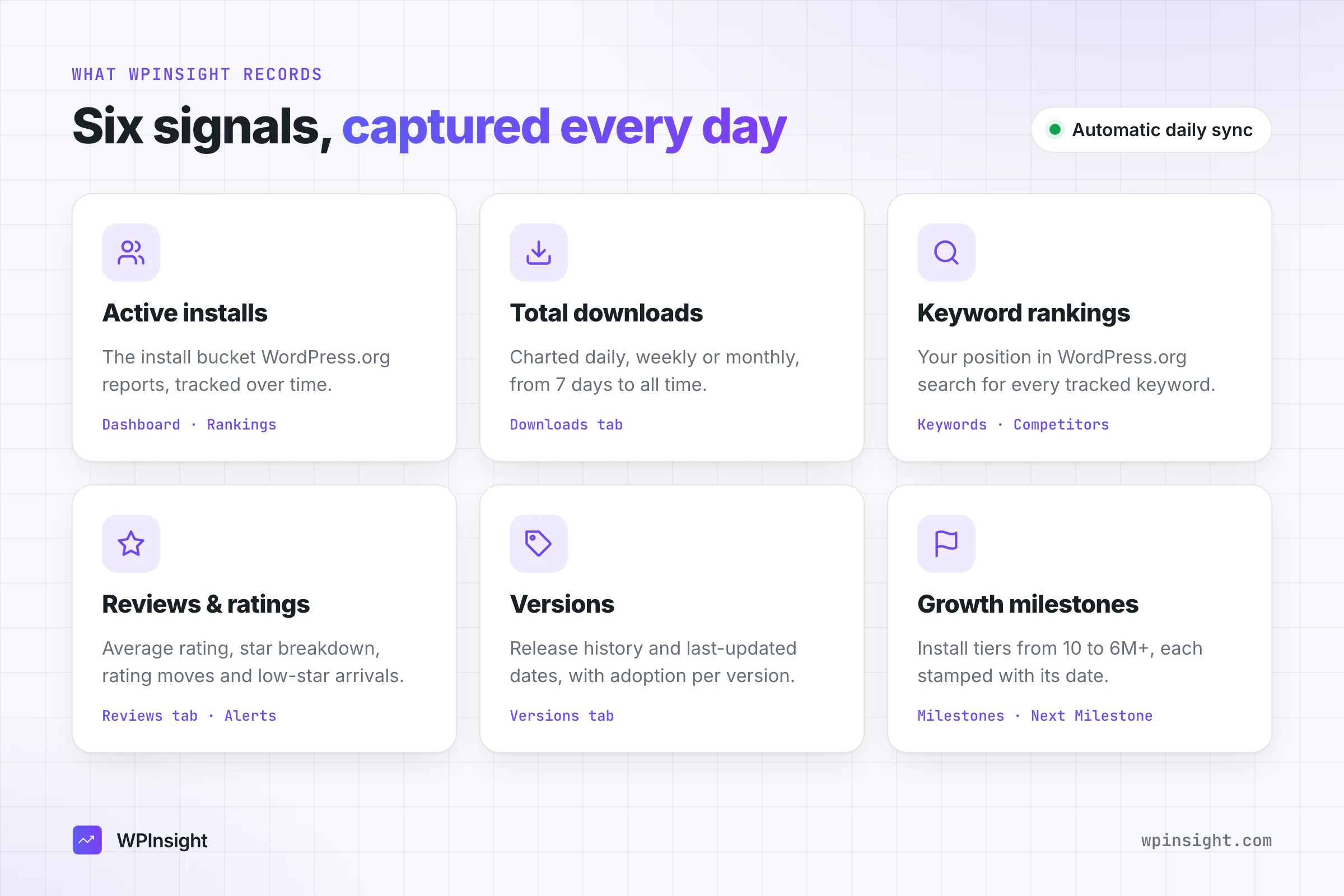
WPInsight is a tracking and intelligence dashboard for WordPress.org plugins. You add a plugin by its slug, and from then on it records, automatically, once a day:
- Active installs and total downloads
- Keyword rankings in WordPress.org plugin search
- Reviews and ratings
- Versions and last-updated dates
- Growth milestones, the install tiers you reach over time
Every day adds to the history. A few weeks in, you stop guessing whether a release helped or a rival is catching up, because you can see it on a chart.
Nothing to install on your site
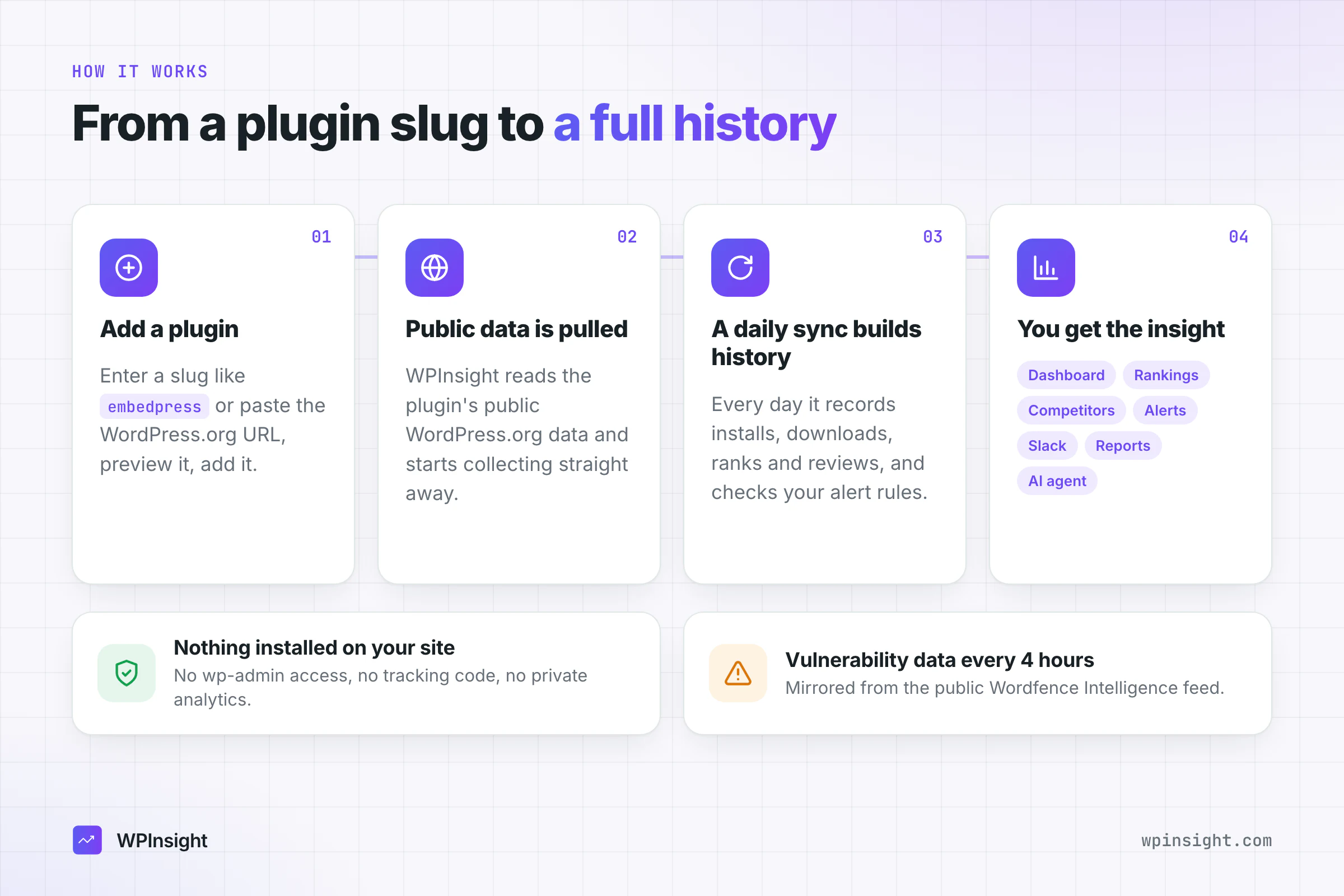
WPInsight is built from public WordPress.org data, the same information anyone can see on a plugin page, just collected, kept as history and analyzed for you. It doesn’t need access to your wp-admin, your site or any private analytics. There’s no plugin to install and no tracking code to add.
The one source outside WordPress.org is vulnerability data, mirrored from the public Wordfence Intelligence feed and refreshed every four hours. Each record links back to its original disclosure.
A tour of WPInsight
Here’s what you get once your plugins are in, feature by feature.
Track a plugin in under a minute
Click Track new plugin (or press ⌘K and pick “Track a new plugin”), enter a slug such as embedpress or paste the full WordPress.org URL, and click Fetch. WPInsight shows a preview with the name, active installs and rating so you can confirm it’s the right plugin. Click Add plugin and data collection starts straight away.
Every tracked plugin gets its own detail page with tabs for Overview, Keywords, Downloads, Reviews, Versions, Readme, Security and Settings. Track your first plugin has the full walkthrough.
Keywords: know where you rank
Ranking in WordPress.org search is simple to define and hard to watch. Search a term, and the order the plugins come back in is the rank: the first result is #1, the second is #2, and so on. WPInsight records your position for every tracked keyword once a day.
You don’t start from zero. When you add a plugin, WPInsight seeds keywords from its WordPress.org tags (usually around five) and keeps them in step as your tags change. On top of those, you can add your own keywords, in bulk if you like.
A word on reading the numbers: WordPress.org constantly re-weights installs, ratings and freshness, and a new version or a burst of reviews can move you within hours. Day-to-day movement of one or two places is normal noise, not a trend. That’s exactly why history matters: a week of data tells you whether a dip is noise or a slide. More in Add keywords to track rankings.
Rankings: the command center
The Rankings page puts your whole portfolio in one table, each plugin with its current rank and a trend sparkline. Open any plugin to see:
- Rank vs. installs and rank change charts over time
- Keyword positions for every tracked keyword
- Competitors and a review breakdown for context
- Recent activity, so notable changes stand out
- A Next Milestone card with a progress bar and estimated pace toward your next install tier
The dashboard: your portfolio at a glance
The dashboard is where most days start. Four tiles across the top show total active installs, total downloads, average keyword rank and active alerts, each with a trend and a sparkline. Below that:
- A Downloads & Installs chart you can switch between 7 days, 30 days, 90 days and all time
- Best performers, your top five plugins by 30-day download growth
- Top keyword gainers and Needs attention, the keywords that climbed and slipped the most recently
That last card is your triage list. A keyword slipping today is often a download dip next week, and this is where you catch it first.
Downloads and milestones: watch the growth
A plugin’s Downloads tab charts downloads daily, weekly or monthly, over windows from 7 days to all time, with an installs-by-version breakdown alongside.
Milestones follow WordPress.org’s install tiers, from 10, 50, 100 and 200 all the way to 6M+. When you cross one, WPInsight stamps the date and the install figure automatically on the next sync and never overwrites it, so you build an honest timeline of your growth. It also projects when you’ll hit the next tier at your current pace, for example: “At the current pace, you’ll reach 100,000 active installs in about 3 weeks.”
One thing to keep in mind: WordPress.org reports active installs in broad buckets (10,000+, for example), not exact counts, so install figures and milestones move in those steps. See Downloads & milestones.
Versions: see how releases land
The Versions tab lists your release history and changelog, with adoption and ratings for each version. When you ship an update, you can see how quickly users move to it and whether ratings shift after it.
Reviews: read the room
Each plugin’s Reviews tab shows the average rating, total review count, the star breakdown and the date of the latest review.
WPInsight also records your review standing every day, which lets it tell you what actually moved:
- Rating moves, at the one-decimal figure shown on your listing. A change from 4.6 to 4.5 stars is news; the raw score wobbling underneath it is not.
- Low-star arrivals, new 1- and 2-star ratings
- Review-count milestones, such as passing 100 or 500 reviews
- Individual new reviews as they appear
Review history starts the first time a plugin is synced and can’t be backfilled, so the sooner you start tracking, the more you’ll have. See Reviews.
Competitors: know who you’re up against
Competitors need no setup. For every keyword you track, WPInsight shows the other plugins ranking in WordPress.org search, with their active installs, downloads and ratings beside yours, and where you sit among them.
That helps you spot a rival climbing before they overtake you, understand why a keyword is hard (a dominant incumbent or an open field) and find gaps where a smaller competitor is beatable. See Competitors.
Alerts: hear about changes first
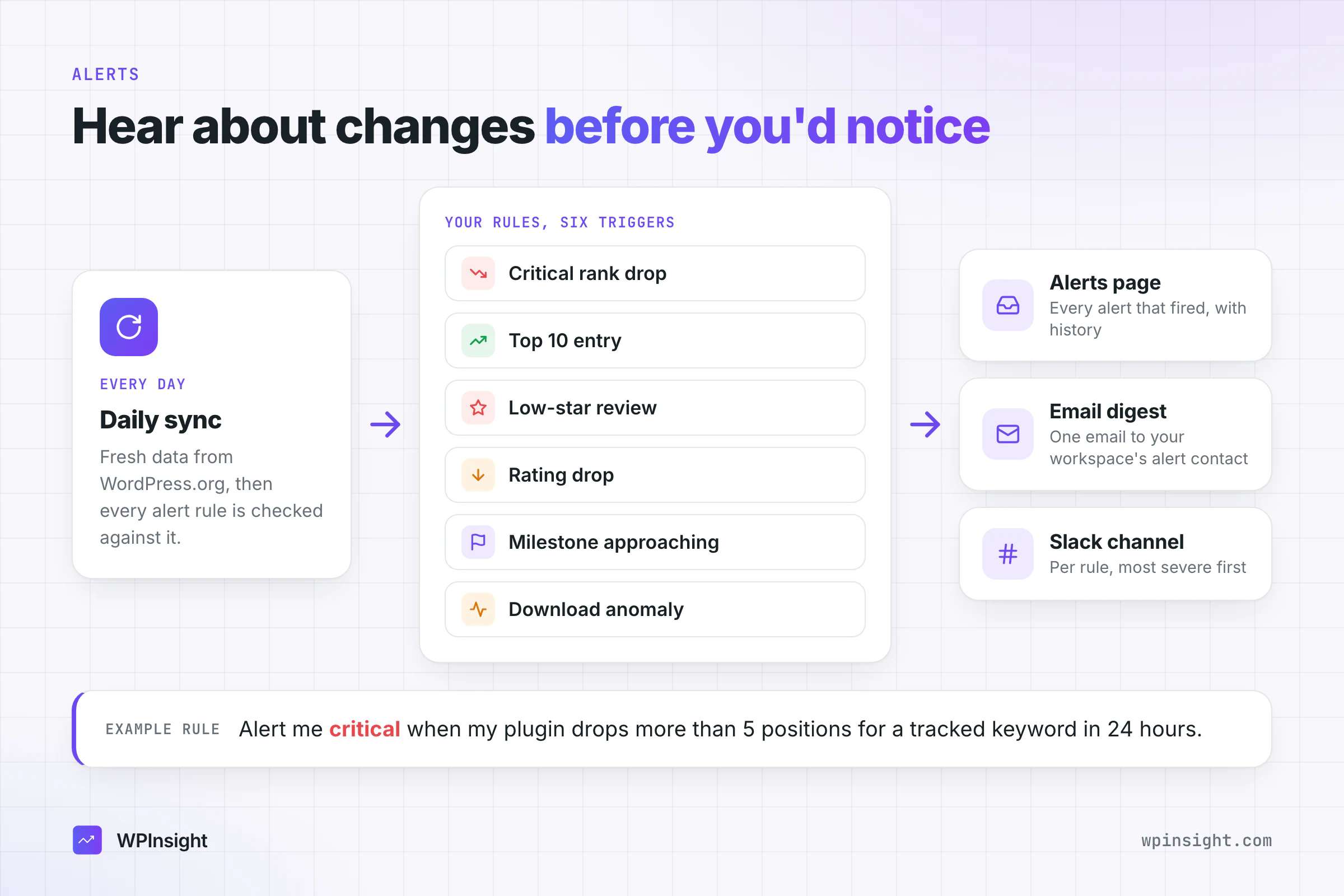
Alerts tell you when something crosses a threshold you care about. Pick a trigger, set the threshold and severity, and you’re done. The triggers are:
- Critical rank drop
- Top 10 entry
- Low-star review
- Rating drop
- Milestone approaching
- Download anomaly
Rules are checked after each daily sync. Anything that fires shows up on the Alerts page and arrives as a single email digest to your workspace’s alert contact. On paid plans, each rule can also post to a Slack channel of your choice.
A typical rule: “Alert me critical when my plugin drops more than 5 positions for a tracked keyword in 24 hours.” See Create custom alerts.
Alongside alerts, the bell in the header holds an in-app notification feed tagged Critical, Warning or Info, covering new reviews, milestones reached and version lag. Old notifications clear themselves after 30 days, so the feed stays relevant.
Slack: updates where your team already works
Connect Slack once under Settings, then give each plugin its own channel and cadence:
- Instant posts only what changed (a keyword moving, new ratings, a milestone reached, a new release) within 15 minutes of each data refresh. If nothing changed, nothing is posted.
- Daily or weekly reports arrive at a time you choose, in your own time zone.
You choose what each report includes: a performance summary, keyword rank changes, ratings, milestone progress and new releases. Send test message shows you exactly what the post will look like before you save. See Slack integration.
Scheduled reports: share progress without screenshots
Reports bundle your metrics into a recurring email digest. Start from a template (Growth summary, Keyword movement or Competitor watch), schedule it weekly or monthly, and toggle which sections appear: KPIs, top movers, charts and review highlights. Recipients don’t need a WPInsight account, which makes reports handy for managers, partners and clients.
Readme tools: improve your listing
Your readme is your listing, so the Readme tab gives you two tools:
- A readme validator that checks structure and required sections and flags problems. No AI key needed.
- An AI rewrite that uses your plugin’s real data to rewrite the readme for clarity and search. It runs on your own AI key, and every rewrite is saved so you can look back at earlier versions.
Nothing is pushed to WordPress.org for you: you keep what you like and copy it into your readme yourself. See How to rewrite a readme.
Ask your AI agent
WPInsight runs an MCP (Model Context Protocol) server. Connect it to Claude, Cursor, VS Code, Windsurf, Codex or another MCP-compatible client, and instead of opening five dashboard pages you can just ask:
“Why did my plugin lose ranking this week?”
“Which keywords should I focus on next?”
“Compare my plugin with the top 3 for my main keyword.”
The agent reads your tracked history and explains what it finds. Every new API key starts read-only. The agent can’t see other workspaces, touch billing or settings, or edit anything on WordPress.org, and it only gets write tools if you switch them on one by one. It recommends; you decide what to ship.
Built for teams
A workspace is your company’s private space, with its own plugins, keywords, settings and people. Invite teammates by email and give them a role: Owner, Admin, Editor or Viewer. If the defaults don’t fit, adjust what each role can view, add, edit, delete or export, or set per-person overrides. Menus and pages hide or lock themselves based on each person’s permissions. See Members & roles.
Explore the public tools, no account needed
Some of WPInsight is open to everyone, built on its mirror of the WordPress.org directory:
- Plugin directory: search by name or slug, browse by category and filter by installs, ratings, review count and update date.
- Discover: recent listings grouped by listing date, with seven-day downloads and rank movement.
- Leaderboard: plugin rankings with 24-hour and seven-day movement, Emerging, Growing and Established climbers, and author account rankings.
- Rising this week: plugins with real download momentum over the past week.
- Compare: put two plugins head to head on installs, downloads, rating, freshness and rank, with the winner on each row highlighted.
When you find a plugin worth watching, the Track action adds it to your workspace. See Browse plugins and the leaderboard and Compare plugins.
Putting it together
Here’s what a week can look like once WPInsight is running:
- Monday morning, a Growth summary report lands in your inbox, and your manager gets the same one.
- Tuesday, a critical alert posts to Slack: you dropped six places for your main keyword overnight.
- You open Competitors for that keyword and see a rival shipped a release and climbed past you.
- You ask your AI agent whether your own last release changed your download trend, and what to focus on next.
- You run the readme validator, tighten your readme with an AI rewrite and ship an update.
- Over the next days, the keyword chart shows whether you’re climbing back, and the dashboard’s Needs attention card tells you if anything else is slipping.
No spreadsheets, no daily directory checks, and every step backed by history you didn’t have to collect yourself.
Who it’s for
WPInsight is for plugin developers and teams who publish on WordPress.org and want to understand how their plugins are doing, and grow them, without checking the directory by hand every day. That might be a solo maintainer with one plugin, an agency watching client plugins, or a company running a full portfolio.
How to get started
- Create your account with email and password, or sign in with Google.
- Set up your workspace with your organization’s name and, optionally, a logo.
- Track your first plugin by its slug. WPInsight pulls its public data and refreshes it every day from then on.
- Add keywords for the searches you want to rank for.
- Connect Slack and invite your team when you’re ready.
The Free plan tracks one plugin, and no card is required. Competitor tracking, Slack, review history, the AI readme rewrite and AI agent access come with paid plans.
Getting started with WPInsight walks you through every step. The sooner you start, the more history you’ll have when you need it.