
Tracking
Add keywords to track rankings
4 min read
Track exactly where your plugins land in WordPress.org plugin search for the terms that matter, and watch those positions move over time.
Where keywords come from
There are two kinds of keywords:
- Tag keywords — when you add a plugin, WPInsight auto-seeds keywords from the plugin’s WordPress.org tags (usually around 5). These are protected and can’t be deleted.
- Manual keywords — keywords you add yourself. Both kinds count toward your plan’s keyword limit.
How to add keywords
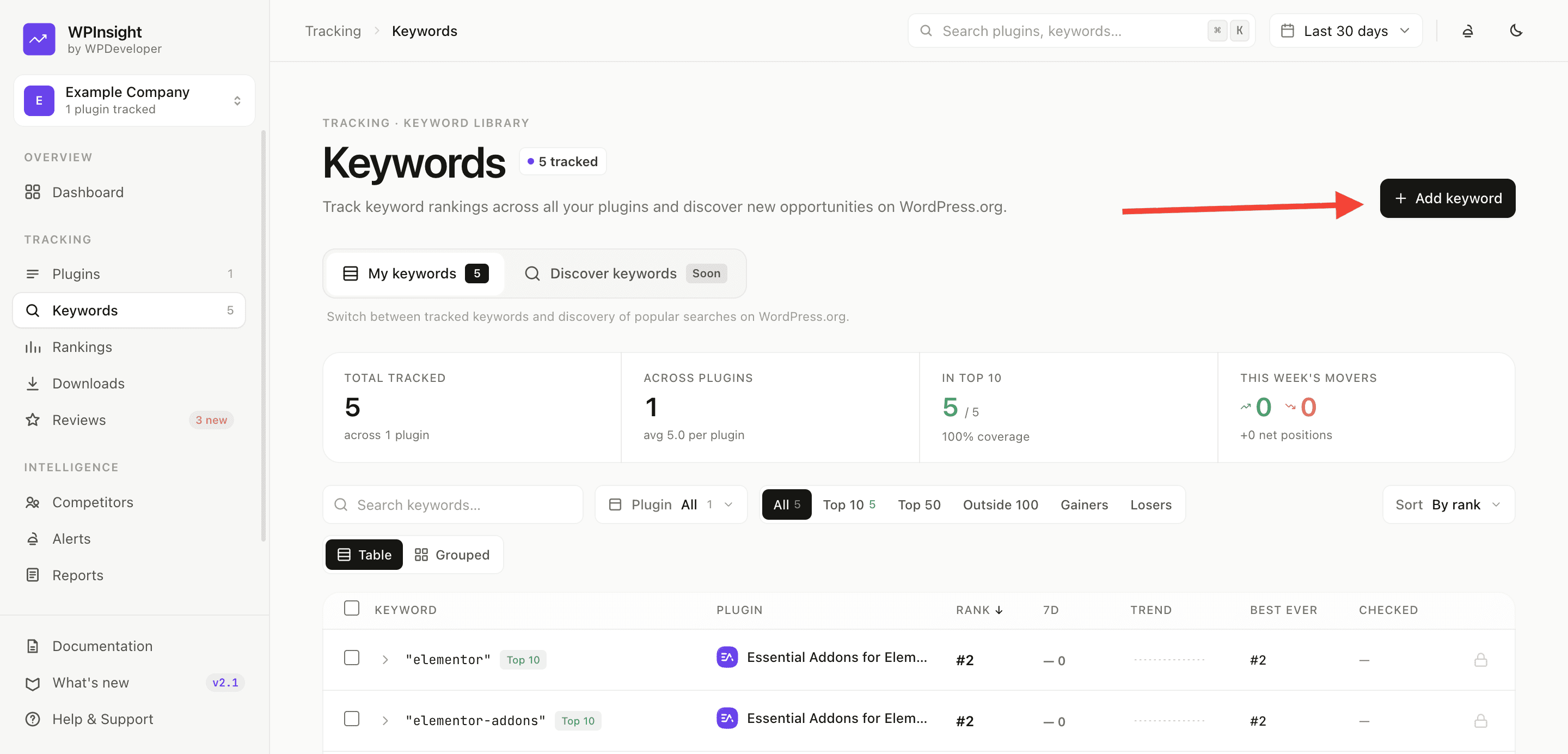
- Open a plugin and go to its Keywords tab, or use the Keywords page to work across all plugins.
- Click
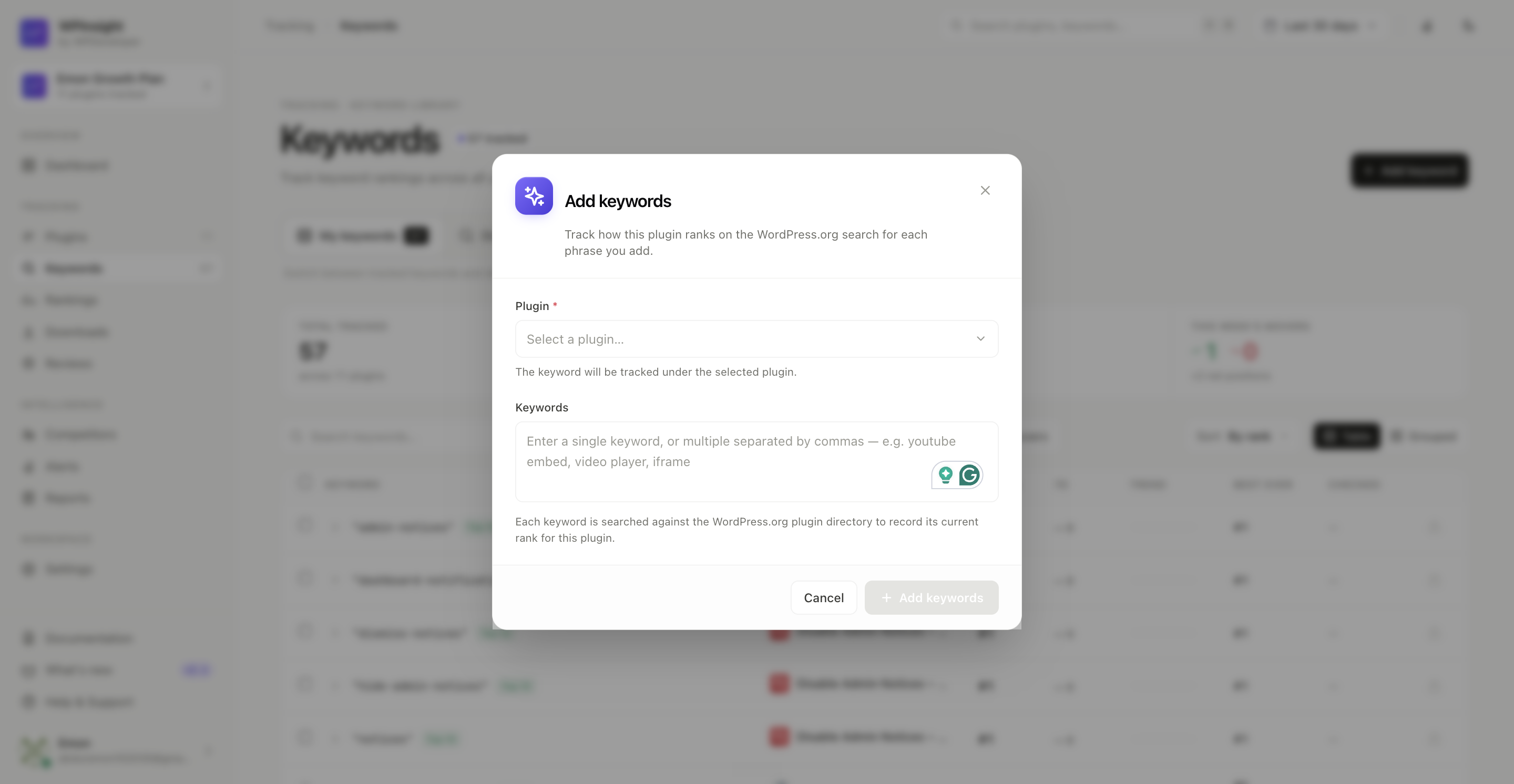
Add keywords. - Enter one or more keywords (bulk add is supported).
- Click
Add keywords. WPInsight starts recording each keyword’s rank on the next sync.
How position becomes rank
When you search a term on WordPress.org, plugins come back in a specific order. That order is the rank — the first result is #1, the second is #2, and so on. WPInsight records your plugin’s position for each tracked keyword once per day.
Why ranks fluctuate
- WordPress.org continuously re-weights installs, ratings, and freshness.
- A new version or a burst of reviews can move you within hours.
- Day-to-day ±1–2 movement is normal noise, not a trend.
How to manage keywords
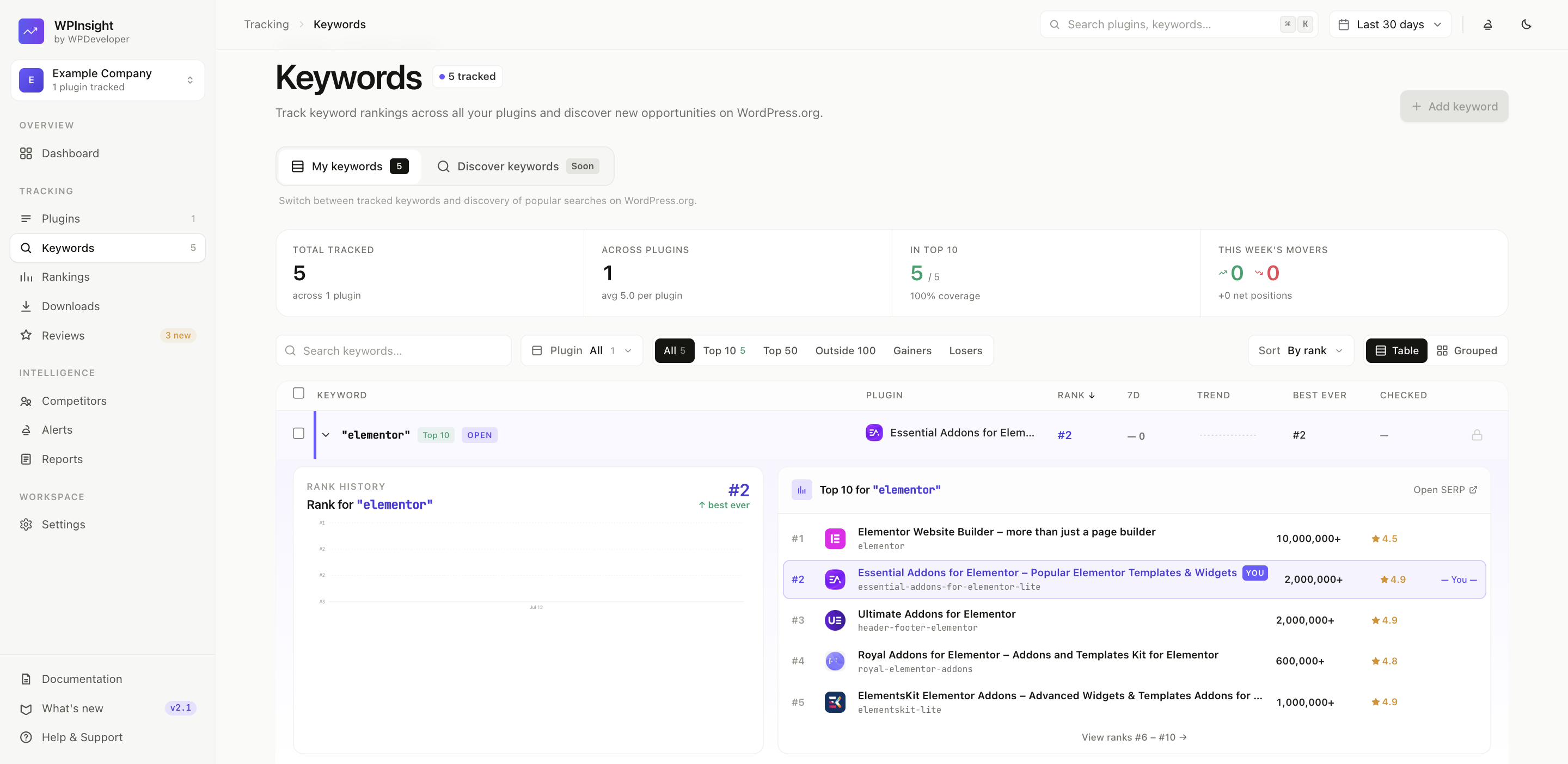
- View rank history — see each keyword’s position over time.
- Expand the SERP — inspect who else ranks for a keyword.
- Delete manual keywords — remove keywords you added (tag keywords stay).
- Automatic sync — as a plugin’s WP.org tags change, your keyword list keeps itself in step.
Plan limits
Your plan sets how many keywords you can track. When you reach the cap, you’ll be prompted to upgrade before adding more. See Billing & subscriptions.