
Workspace
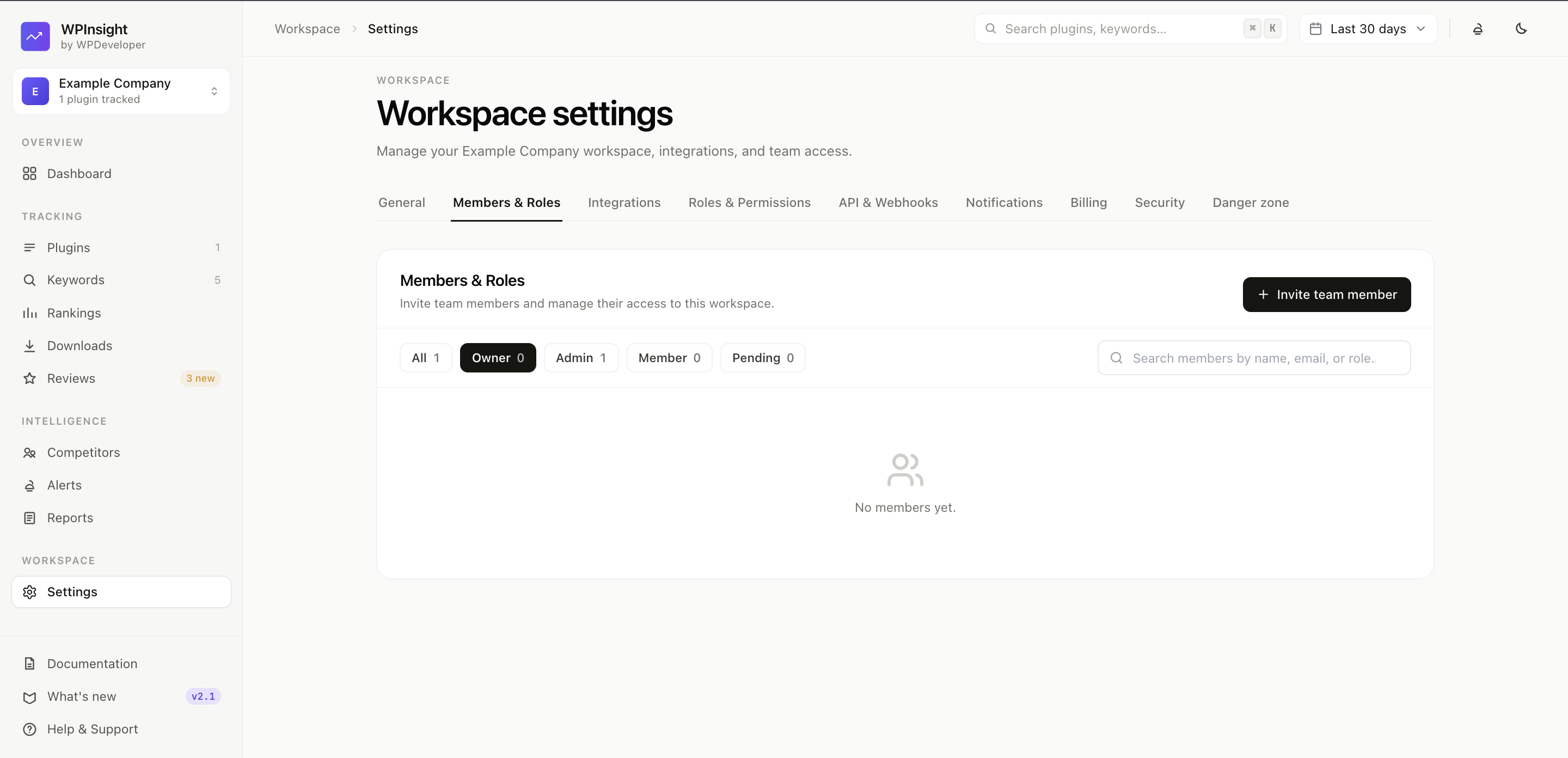
Members & roles
4 min read
Control who’s on your workspace, what they can do, and how your integrations and billing are set up — all from Settings.
How to manage members
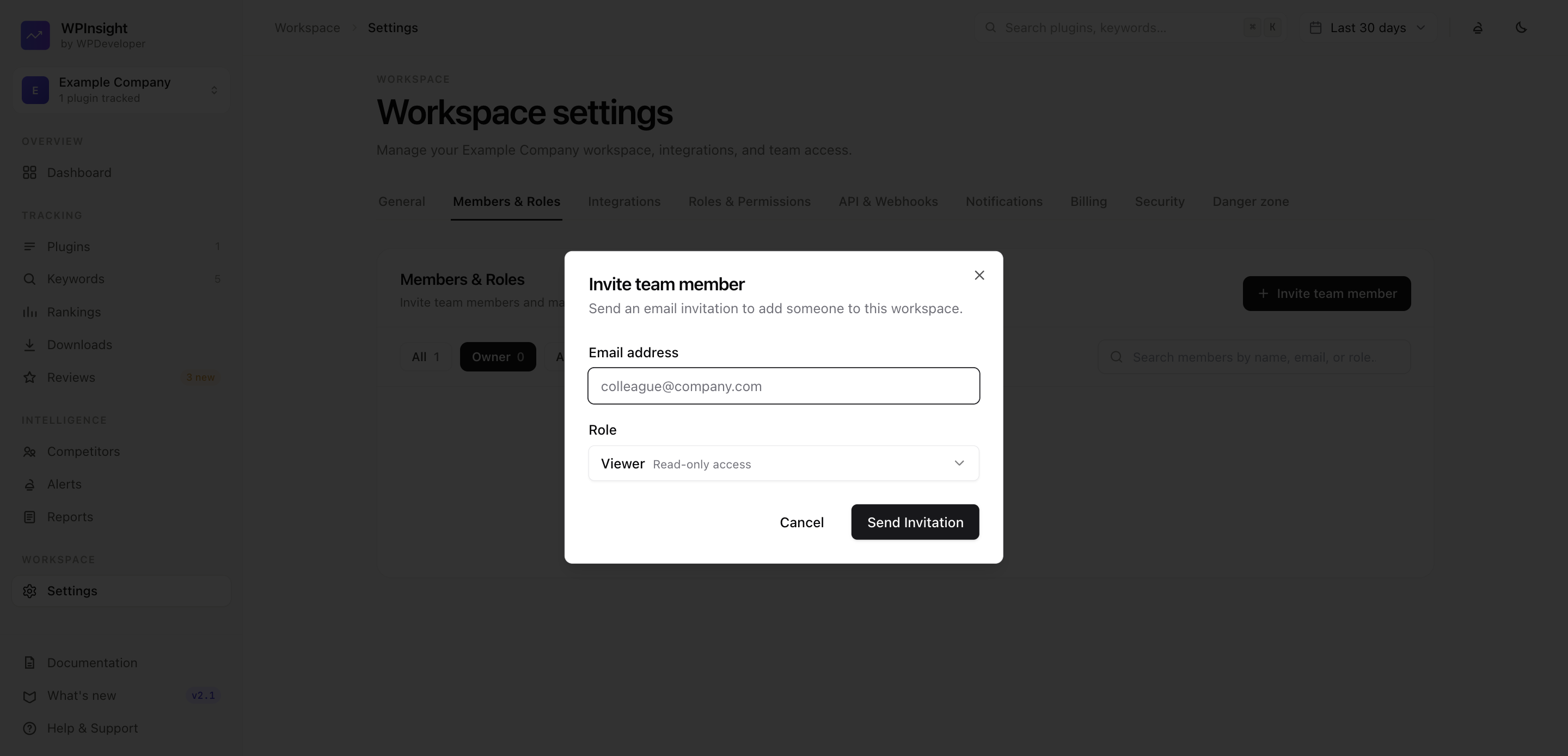
Manage the people in your workspace (Settings → Members):
- Invite by email — send an invite link; new users register from it, existing users get the workspace added to their account.
- Set roles — Super Admin, Admin, Editor, or Viewer (the workspace creator is shown as Owner).
- Edit or remove members, and resend a password reset.
- Seat limits — invites are blocked once you hit your plan’s user cap.
How roles & permissions work
WPInsight uses role-based access control. Out of the box:
- Super Admin — full control of the workspace (the creator, shown as Owner).
- Admin — manage plugins, members, and settings.
- Editor — add and manage tracked data.
- Viewer — read-only access.
You can customize what each role can do in the Roles & Permissions editor — a simple matrix of resources (plugins, users, settings, reports, routines) and actions (view, add, edit, delete, export). You can also set per-person overrides by email for special cases.
Menu items and pages automatically hide or lock based on each user’s effective permissions.
How to set up integrations
- Slack — connect your team’s Slack. See Slack integration.
- AI — add your AI API key for readme tools. See How to set up your AI key.
Where to manage billing
Jump to your plan summary and invoices from the Billing tab. See Billing & subscriptions.