
Integrations
Slack integration
3 min read
Connect your team’s Slack so WPInsight can post updates about your plugins right where you already work.
Paid feature. Slack integration is available on paid plans.
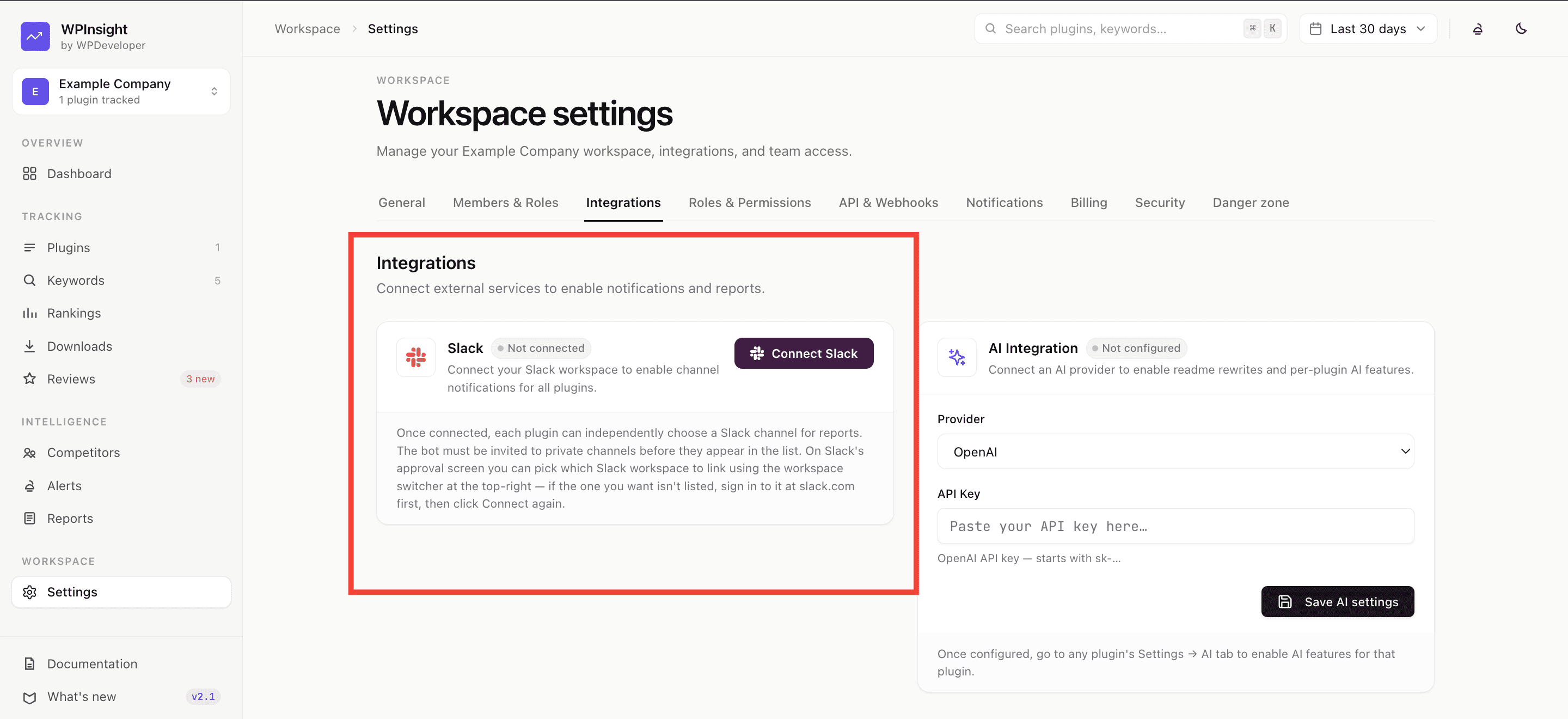
How to connect Slack
- Go to Settings → Integrations.
- Click
Connect Slack. - You’ll be sent to Slack to authorize WPInsight for your workspace.
- Pick the workspace and approve. You’ll be brought back with Slack connected.
Your Slack access is stored securely and privately per workspace — every workspace connects its own Slack independently.
How to configure per-plugin alerts
Each plugin can post to its own channel:
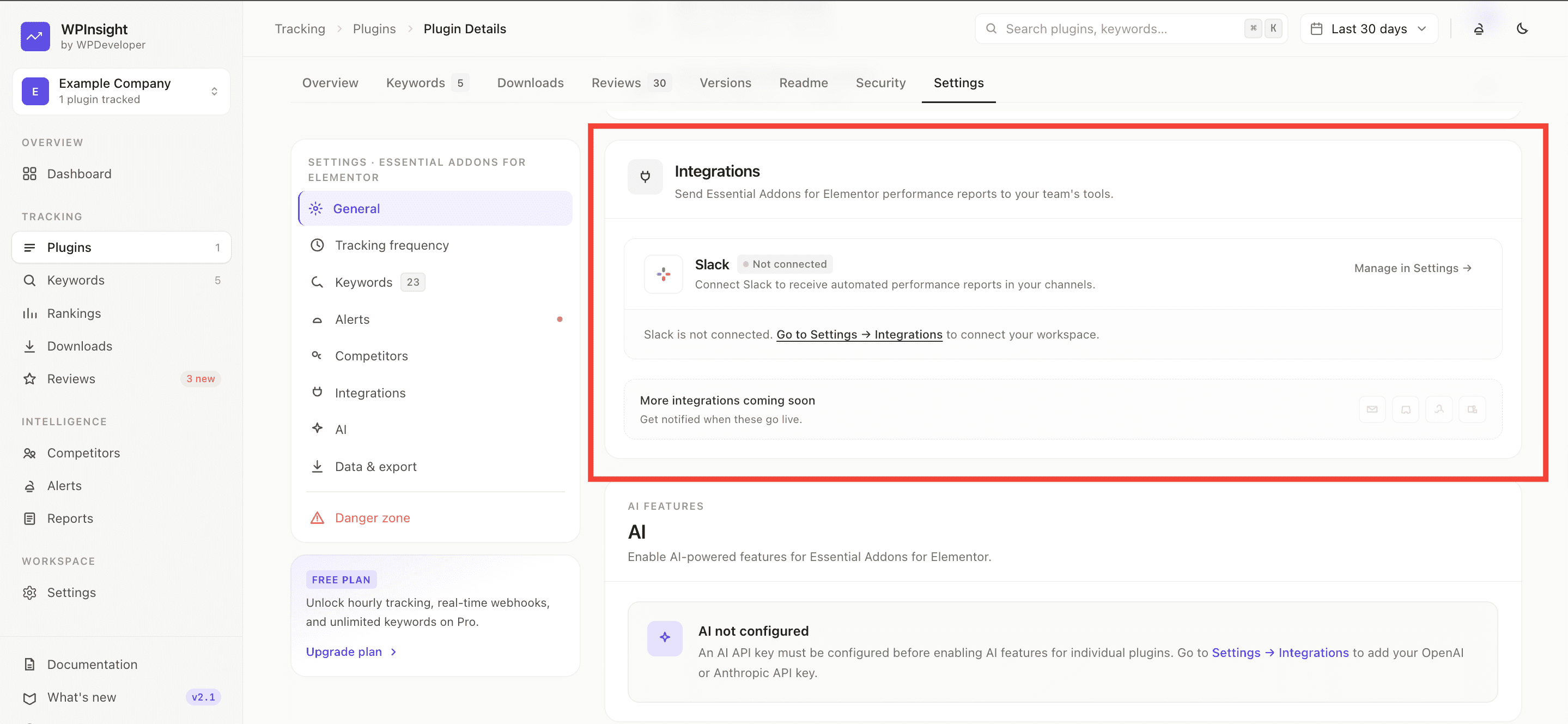
- Open a plugin and go to its Settings tab.
- Turn on Slack for that plugin.
- Choose the channel to post in.
- Pick which events should notify (for example, rank drops or new reviews).
- Click
Send test messageto confirm it works.
How to manage the connection
- Channel picker — browse and select from your Slack channels.
- Test connection — verify Slack is reachable at any time.
- Disconnect — remove the Slack connection whenever you want (this stays available even if your plan changes, so you can always clean up).